Usage
This guide walks through the main user flow in Parking App, from signing in to ending a parking session.
Quick start
Open the app.
Sign up for a new account, or log in with an existing account.
Allow location access when prompted.
Search for a nearby car park.
Start a parking session.
Extend, cancel, or let the session finish.
Leave a review and check your session history.
Screenshots
The screenshots below show the main screens users move through during the app flow.
Login
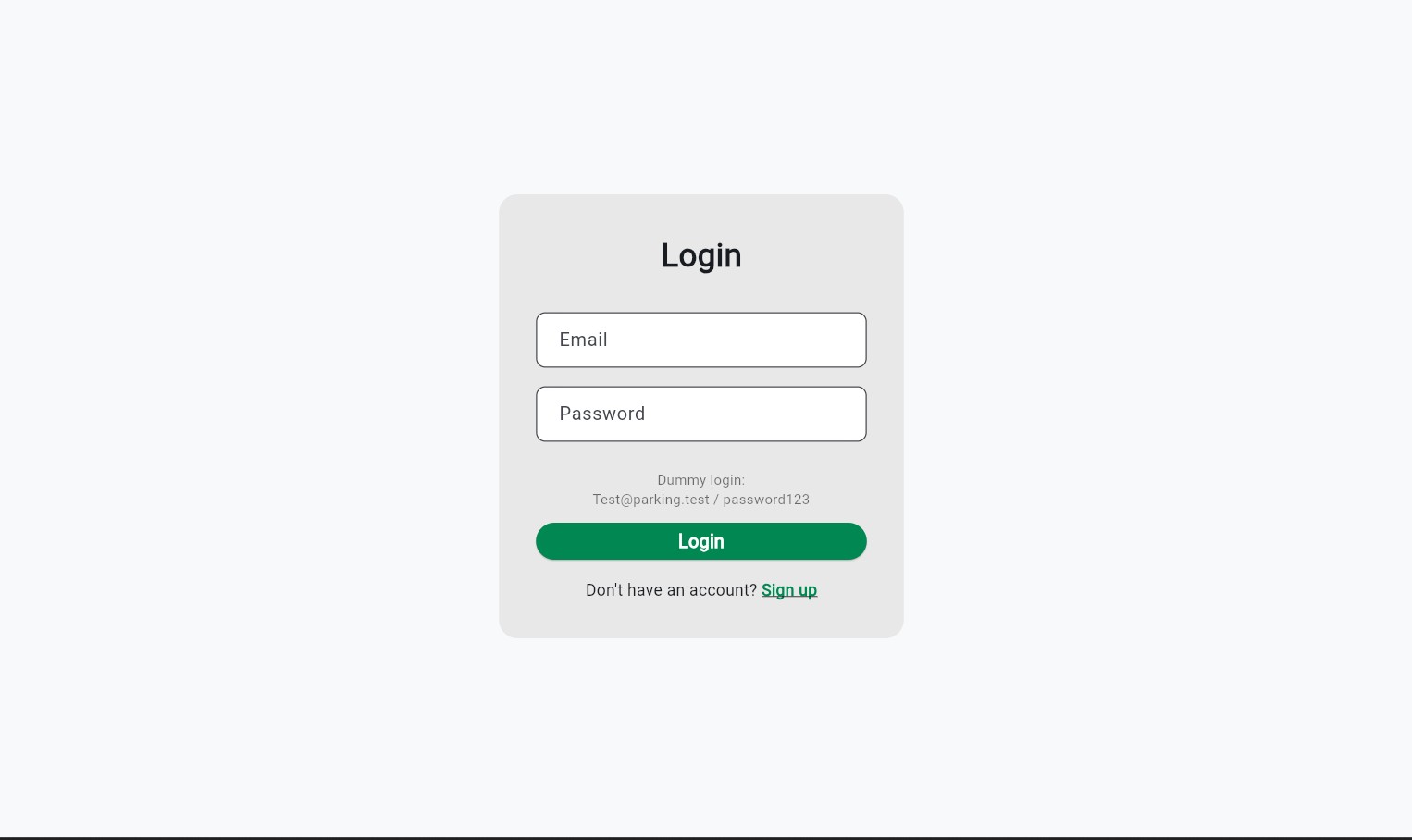
The login screen where users enter their credentials
Sign up
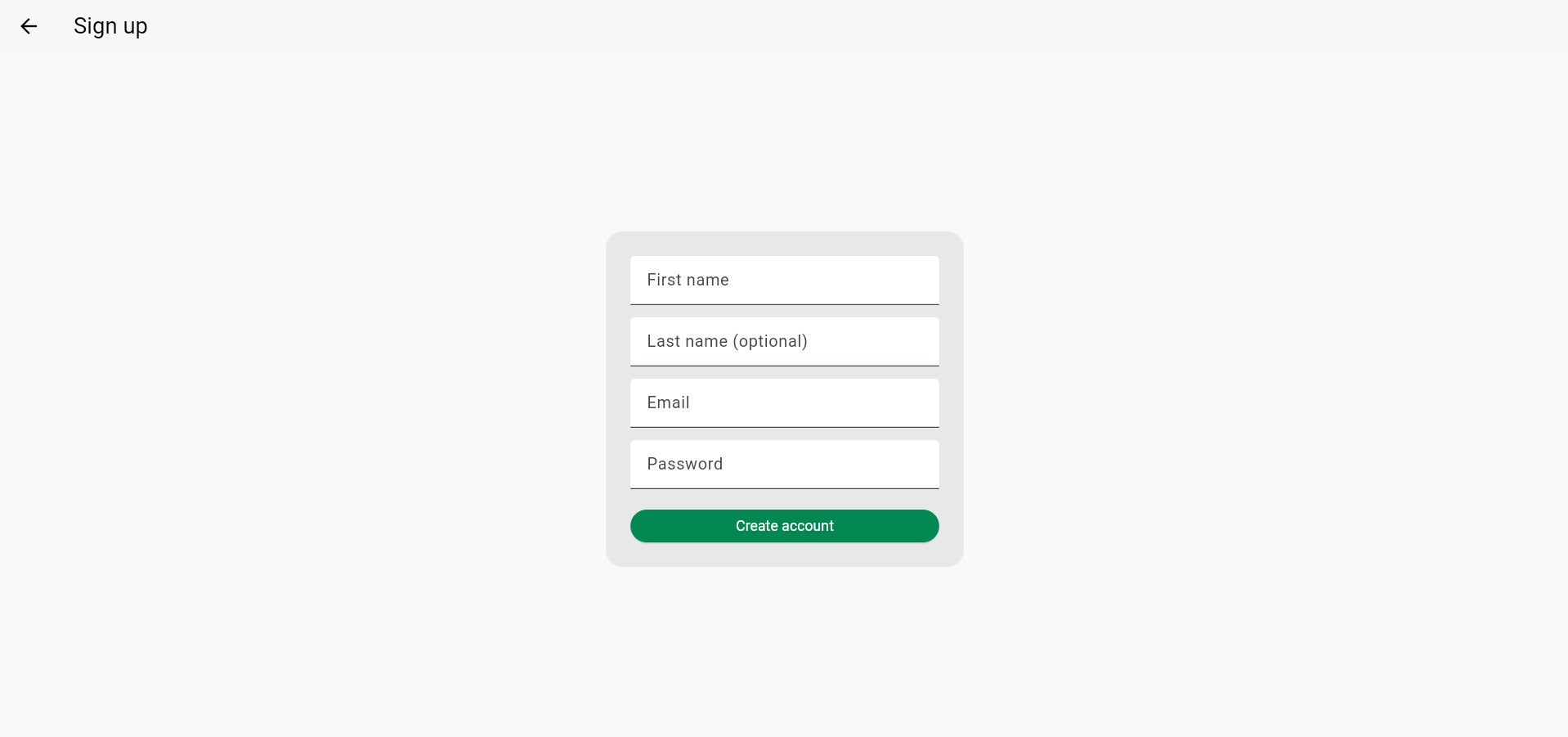
The sign up screen used to create a new account
Settings
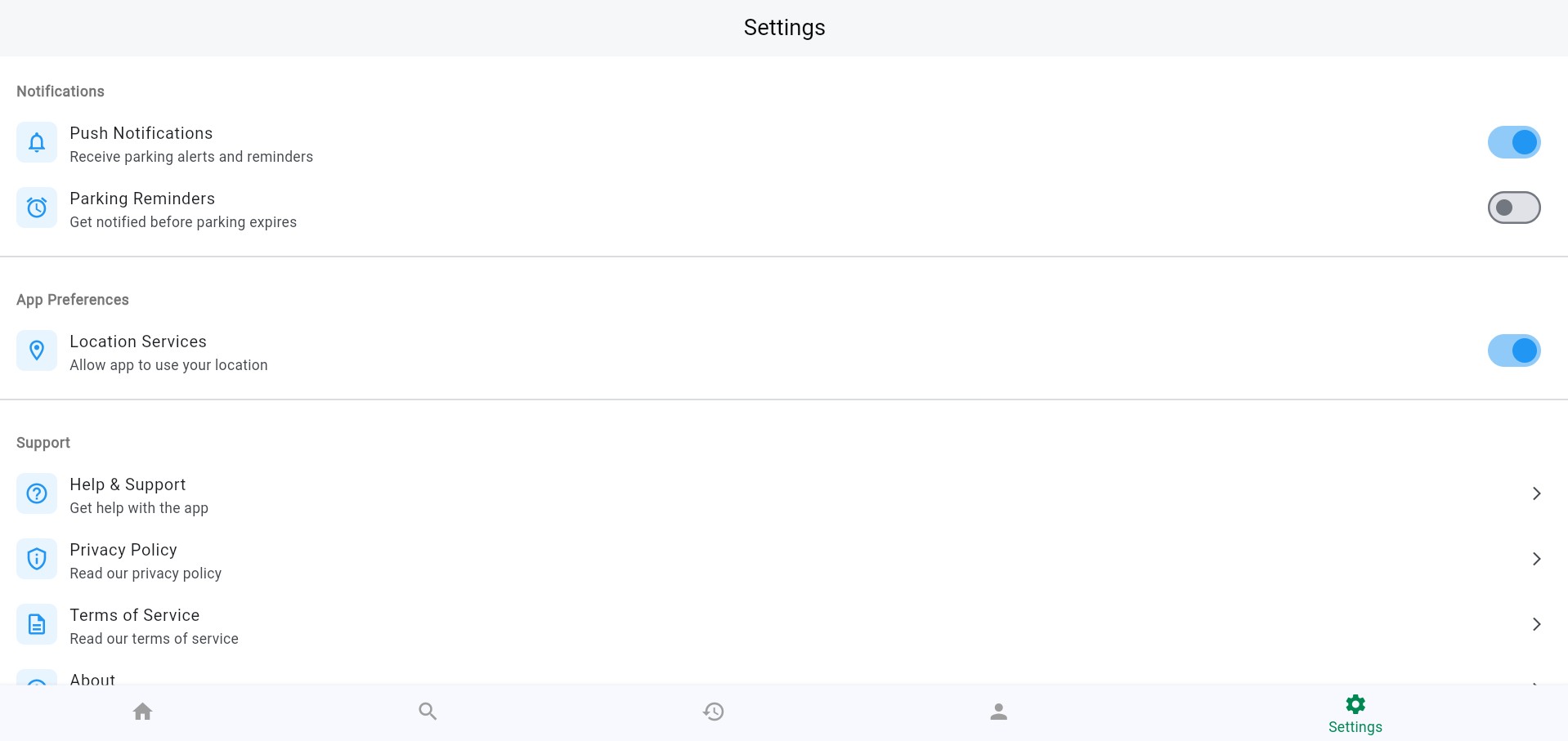
The settings screen where users adjust app preferences
Search
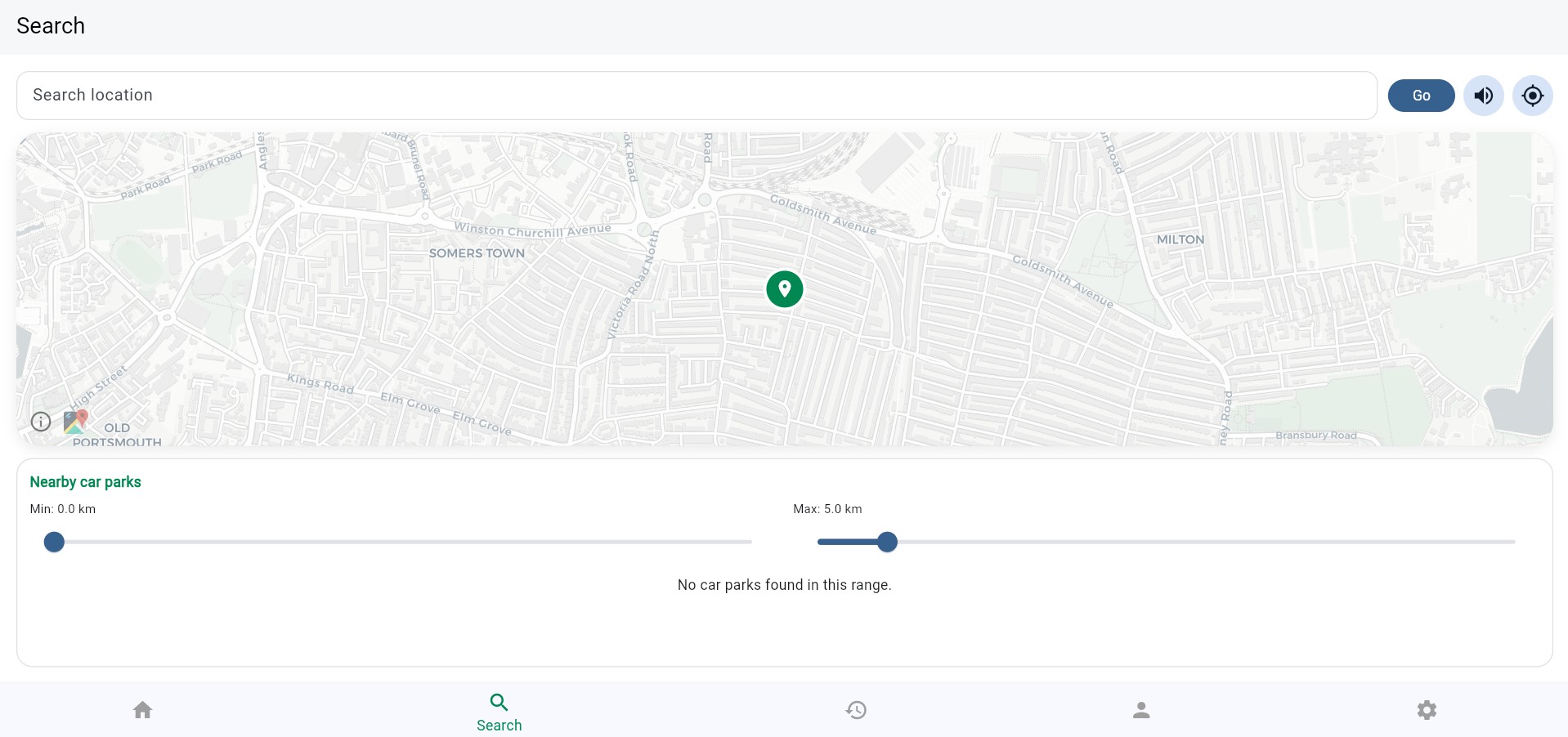
The search screen used to find nearby car parks
History
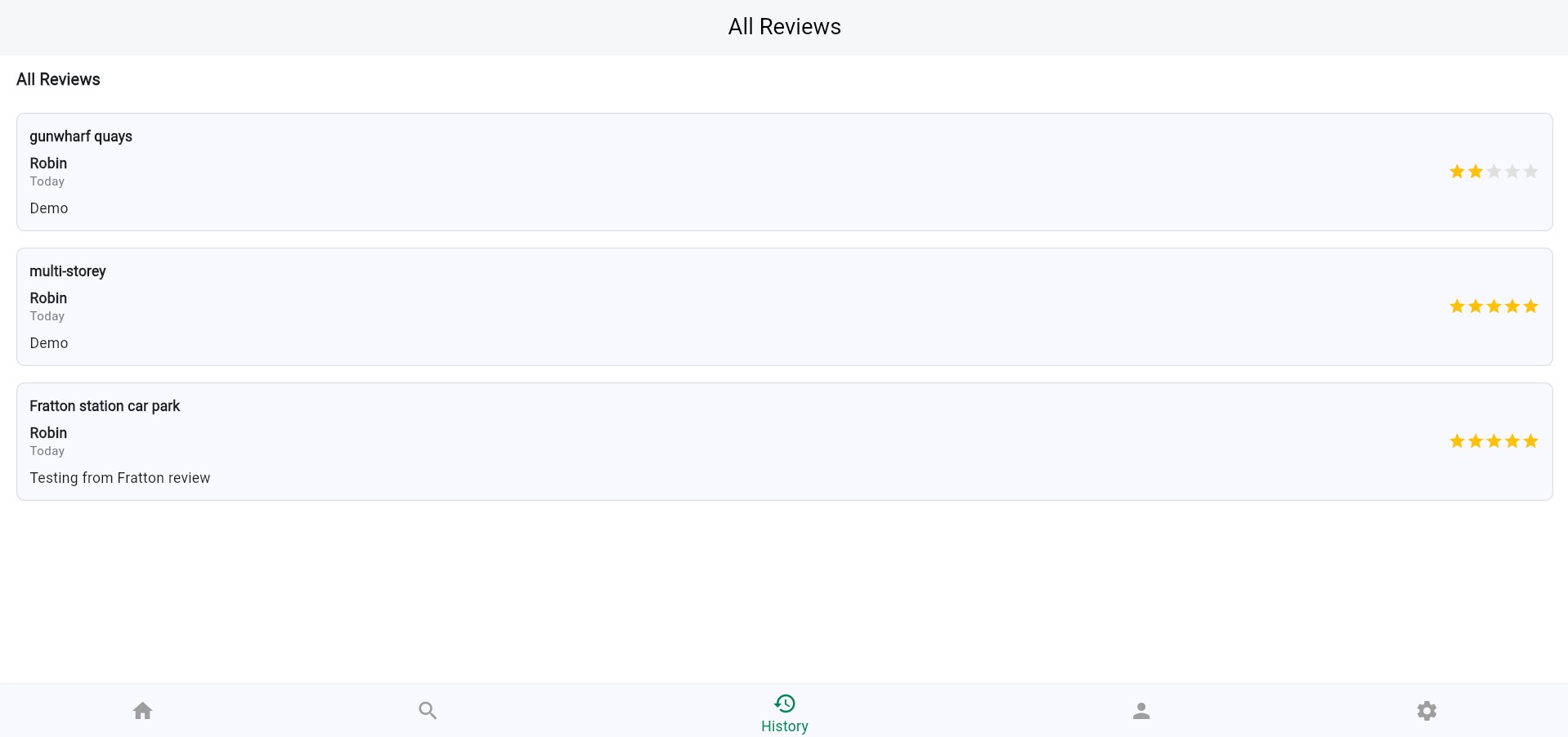
The history and reviews screen
Home
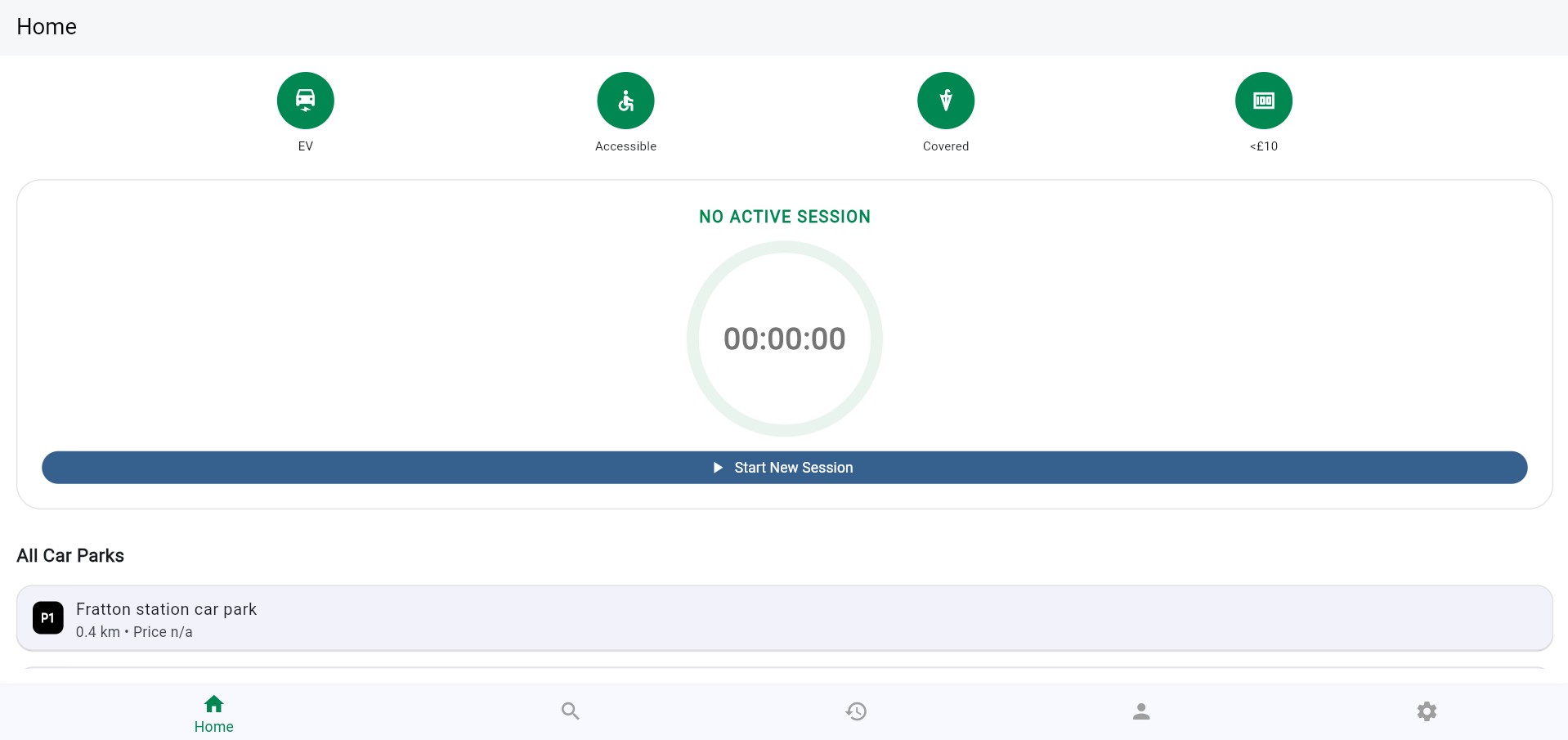
The home screen where users start and manage a parking session
Profile
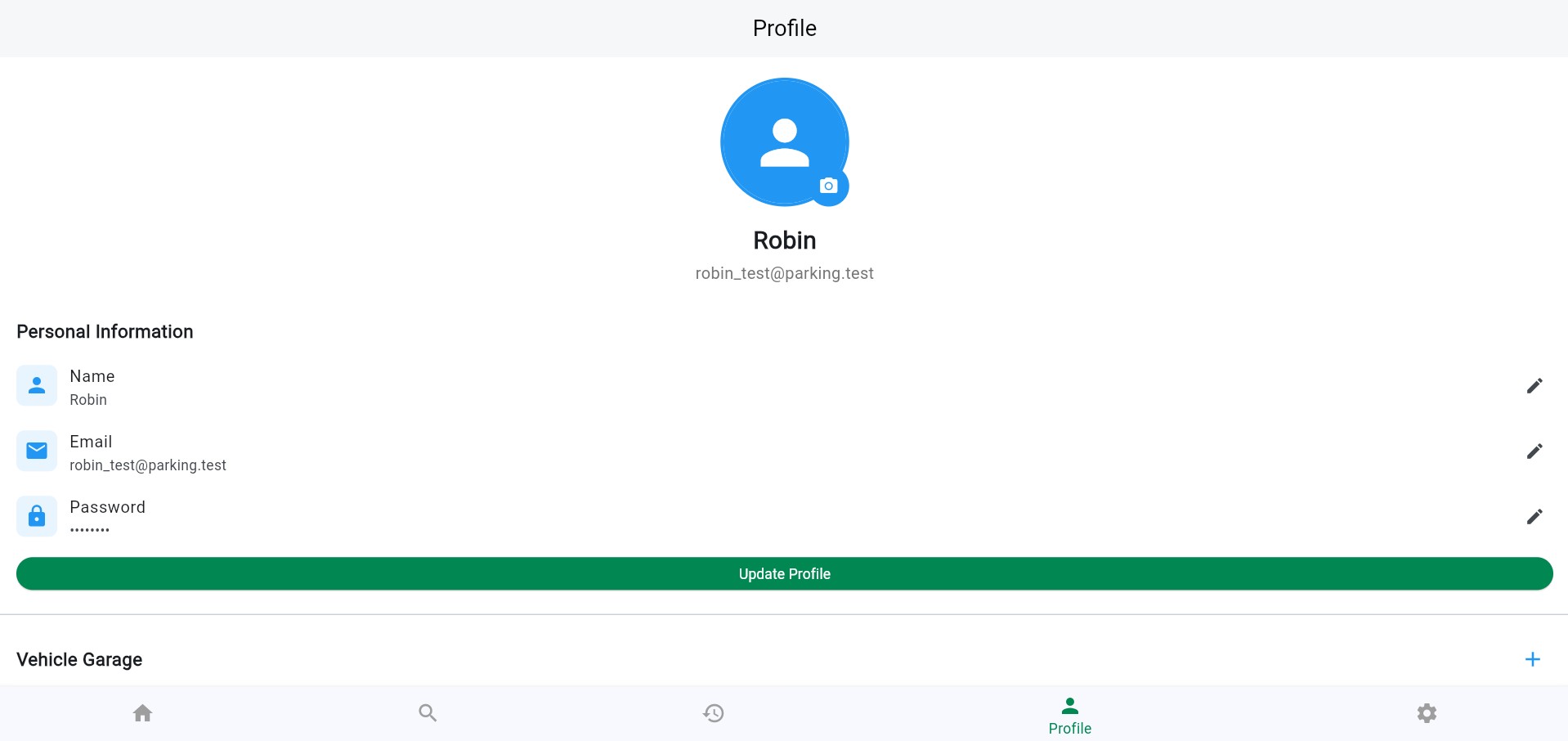
The profile page for viewing account details
Create an account or log in
On first launch, you will see the authentication screen.
Sign up
Tap Sign up.
Enter your first name, last name (Optional), email, and password.
Submit the form to create your account.
Log in
Enter your email and password.
Tap Log in.
After successful login, you will be taken to the main app view.
Find a car park
The search view lets you find and navigate to parking options.
Allow location permissions so the app can use your current position.
Enter a destination or search query.
Adjust minimum and maximum distance filters if needed.
Review returned car parks.
Select a car park to view route and navigation directions.
The app can provide turn-by-turn guidance and voice prompts while navigating.
Start and manage a parking session
After selecting a car park, start a parking session and monitor time remaining.
Start session
Choose a car park.
Select your parking duration.
Start the session.
While active
The timer shows remaining time.
You can add 30 minutes to extend your session.
You can cancel the session early if your plans change.
End session
When the timer reaches zero or you cancel manually, the session ends and can be reviewed.
Review, profile, and history
After a session, you can:
Leave a rating and review for the car park.
Open History to see previous parking sessions.
Open Profile to view your account information.
Open Settings to adjust app preferences.
Troubleshooting
If no car parks appear, check your internet connection and search filters.
If your position is wrong, make sure location services are enabled on your device.
If login fails, verify your email and password, then try again.